As I discussed in my previous post on Microsoft Intune Cloud PKI, it’s important to understand how to perform the operational tasks required to keep the PKI functioning in the most secure state possible when setting up a new Intune Cloud PKI. In this blog post we’ll continue our Microsoft Intune Cloud PKI discussion by reviewing common tasks and workflows Intune Cloud PKI administrators will need to perform, including:
- Inventorying issued certificates
- Revoking certificates
- Adjusting certificate issuance profiles
Reviewing Issued Certificates
The most basic task an administrator will perform is reviewing certificates issued by the PKI. Intune has GUI options to easily check certificates issued by profile and certificates issued by CA.
By Profile
Partner with Microsoft experts you can trust
If it’s time to take that first step toward leveling up your organization’s security, get in touch with Ravenswood to start the conversation.
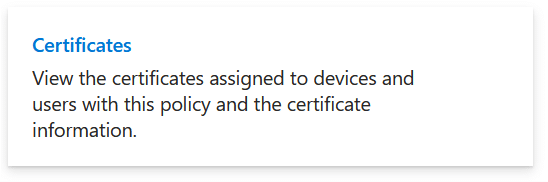
To view a report of all certificates issued by a particular profile, navigate to Devices > Configuration, select the name of the certificate profile, then select the Certificates link.
In the report we can see all certificates issued from the profile.
Note that this view does not show the state of the certificates, as they may be revoked or no longer on the device. Also note that you cannot tell what certificates are currently active, as this view only shows what certificates were issued by the profile.
By Certification Authority
To view a report of all certificates issued by a particular certificate authority (CA), navigate to Tenant Administration > Cloud PKI > CA Name and select View all certificates in the Intune admin center.
This view includes the revocation status of the certificates. Like exploring the certificates issued by a specific configuration profile, this view does not show that a certificate is actively in use, just that it was issued and could potentially still be in use.
Comparing Certificates on Windows Devices
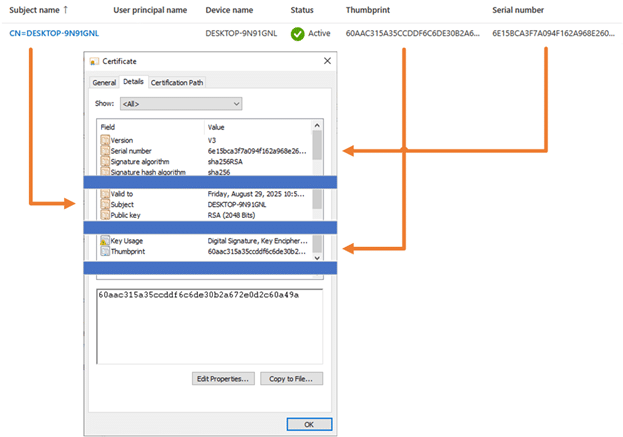
When reviewing certificate reports it is important to be able to correlate the certificates in the reports to certificates installed on specific devices. On Windows devices, the certlm.msc and certmgr.msc Microsoft Management Console (MMC) snap-ins can be used to explore the machine and user certificate stores. These MMCs can be used to determine the thumbprint and serial number of certificates on the computer. These will always match what is presented in the thumbprint and serial numbers fields in Intune. You can use these values to completely disambiguate which certificates are being deployed. This can be especially useful if multiple certificate deployment methods are used from the same PKI.
We can select the certificates and compare the data. The thumbprints and serial numbers will match the deployed certificates as shown in Figure 1.
Revoking Certificates
Certificate revocation is the primary method PKI administrators use to let their clients know that a certificate should no longer be trusted. Specifically, it is the process of listing a certificate’s thumbprint on its corresponding certificate revocation list (CRL). Once a certificate thumbprint is on the CRL, clients validating the certificate will see that it has been revoked and should refuse to trust it.
When a certificate is revoked in Intune, its serial number is added to the CRL and a new CRL is published immediately. Despite this, due to the Intune set CRL publication frequency of 3.5 days, it is possible that clients may not check for revoked certificates for up to 3.5 days after they last checked the CRL. It is currently not possible to modify the CRL lifetimes of Intune PKIs.
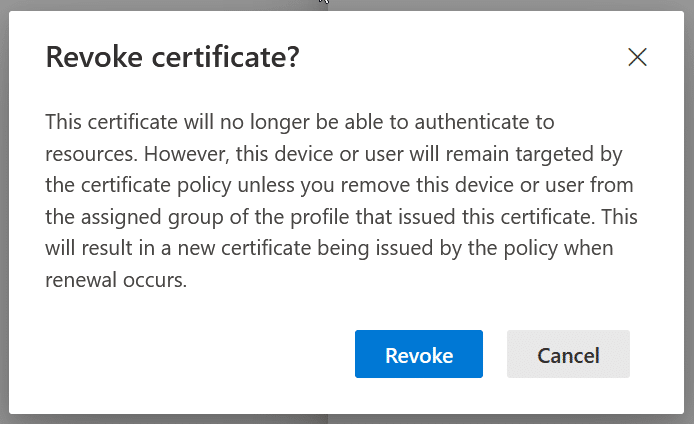
When a certificate is no longer needed it should be revoked. This can be easily performed in the Intune Cloud PKI CA console. Clicking any active certificate gives the option to revoke.
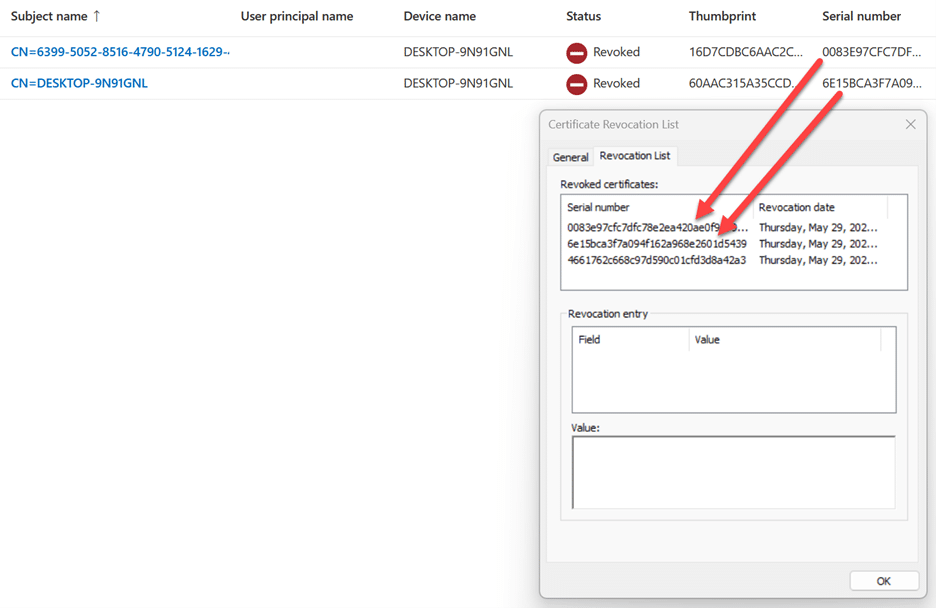
You can confirm that the revocation has happened by downloading the CRL from the CRL distribution point URL noted in the CA configuration found in Tenant Administration > Cloud PKI and selecting the name of the CA the revoked certificate was issued from. Copy and paste the CRL distribution point URL into a browser to download a copy of the CRL.
The CRL will be downloaded as a .crl file. On a Windows computer the .crl file can simply be double clicked to open it with the native windows tooling, very similar to how certificate files like .cer and .crt are normally viewed.
Using the Revocation List tab in the CRL file we can compare the serial numbers to the certificates in the console. The serial numbers for certificates that appear in the CRL should show as Revoked in the Intune admin center as shown in Figure 2.
Profile Behaviors
While the initial deployment of certificates from Intune PKI is straightforward, modifying existing configurations is not. It is very easy to accidentally remove certificates from clients. It’s important to understand the behavior of both clients and Intune itself when adjusting existing profiles to avoid interrupting clients.
Modifying an Existing Profile
Start from the baseline of a properly deployed certificate already on the device. In the following examples the profile that issued the DESKTOP-9N91GNL certificate will be modified.
When the profile is changed, for example by updating the common name configuration in the profile, all devices will automatically reissue the certificates using the new configuration. The devices assigned to the profile will automatically remove the old certificates as soon as the devices check in to Intune.
What Happens in the Portal?
Without any other action, a new certificate is issued the next time the device checks in. Note that the previously issued certificate is still listed as active. While it is generally low risk, this means that there are two “active” certificates, as shown in Figure 3, for the client with one being permanently orphaned until it expires.
What Happens on the Client?
The next time an assigned client checks in, the following steps will happen:
- The certificate will temporarily disappear from the client completely
- Assuming proper profile configuration, shortly thereafter the new certificate appears with the new profile configuration. In this case the common name from the cert issued from the Intune CA has been updated.
Note it is an entirely new certificate. The previous certificate is gone from the device, and the private key cannot be recovered.
The old certificates will continue to show as active and issued in the Issued leaf certificates console. It should also be noted if for whatever reason the new profile configuration is invalid all existing certs will be removed and replaced with nothing. An invalid configuration could be caused by changing values such as requiring a specific key storage provider not available on clients or manually defining new restricted OIDs. For these reasons, adjusting active certificate profiles should be done only when necessary and following proper testing. Changes should be followed up with cleanup efforts to minimize orphaned certificates. In general, we recommend that you create new configuration profiles and migrate devices to those profiles rather than modify existing certificate configuration profiles.
Removing a Device from a Profile
Removing a device from a certificate deployment profile results in the certificate being removed but not revoked. This is just like modifying a profile, but a replacement certificate is not issued.
Conclusion
With operational tasks understood and documented, an administrator is ready to test their implementation of the Intune Cloud PKI. While lacking some of the control administrators enjoy in an on-premises PKI, the ease of operational tasks provides an interesting proposition for organizations looking to enjoy the benefits of PKI without the complexity of end-to-end PKI management.
Are you interested in getting the most out of Microsoft Cloud PKI? We can help plan your Microsoft Cloud PKI deployment (and migration)! Reach out to Ravenswood today! Our experts are here to help.