





For many enterprises, applications are making great progress moving to the cloud, but user identities often remain anchored in on-premises systems. Critical applications remain tied to legacy authentication protocols that depend on Active Directory (AD)—such as Windows Kerberos and LDAP—which makes a move to pure cloud identities problematic.
As organizations look to implement the different components of the Microsoft Entra Identity Governance solution, they are faced with the problem of how to manage these on premises identities from a primarily cloud-based solution. Increasing reliance on services like Microsoft Graph highlights the need for tighter integration between cloud and on-premises identity operations.
While Microsoft has extended a number of these components to on-premises—such as HR Driven Provisioning for AD account creation, and Entra on-premises application identity provisioning for on-premises applications—gaps remain in the ability for Entra Identity Governance to implement complex scenarios on-premises.
What Are Lifecycle Workflows?
Lifecycle workflows are a feature of Entra ID Governance that enable more complex implementations of the processes associated with creating, maintaining, and deleting user accounts as part of broader lifecycle management. These three use cases are commonly referred to as “joiners”, “movers” and “leavers”.
For example, in the joiner scenario, a user account may be required to be created two weeks before their start date but only enabled the day before the start date.
HR-driven provisioning would be used to create the account in the disabled state, and a lifecycle workflow would enable the account before the start date using Azure AD lifecycle workflows.
Entra Identity Governance ships with many built-in tasks that can be associated with a workflow, such as assigning licenses or Entra ID groups to a user or deleting a user. Azure Logic Apps can be used to create custom tasks by registering the logic app as a custom extension in the Lifecycle workflow interface, often driven by automated workflows that respond dynamically to identify events.
For identities or services that exist in Entra, Azure, or other cloud services, this basic framework provides solid coverage for most lifecycle scenarios. If a built-in task cannot complete the job, it should be possible to create a logic app to do it.
The On-Premises Gap
Partner with Microsoft experts you can trust
If it’s time to take that first step toward leveling up your organization’s security, get in touch with Ravenswood to start the conversation.
Unfortunately for on-premises identities and services, this framework comes up short.
The only built-in tasks that are supported for on-premises systems are:
- Enable/Disable an AD user
- Delete an AD user
These actions require the Microsoft Entra provisioning agent to be installed on a server that has network access to the on-premises AD, this is the same agent that is used by HR-driven provisioning, so this is rarely an impediment to implementation.
However, what if we need to undertake other actions on premises besides deleting or disabling users? For example, managers may need to be given permission to direct reports home drive on termination, or users may need to be assigned to certain AD groups as a one-time action when created. In other cases, organizations may need to address inactive users or issue a temporary access pass during exceptional onboarding or recovery scenarios.
These kinds of problems are unfortunately not a good fit for Azure Logic Apps. While they can be solved with Logic Apps, much as you can hammer a nail in with wrench, there is a better approach.
Azure Automation Hybrid Runbook Workers
Azure Automation is an Azure service that can run PowerShell or Python scripts to automate processes or tasks. In the standard configuration it has some of the same limitations as a Logic App when it comes to on-premises integration. Namely, Azure Automation is a cloud service with no access by default to on-premises systems like Active Directory.
Unlike Logic Apps, there is an extension to Azure Automation called a Hybrid Runbook Worker that specifically addresses this limitation.
Hybrid Runbook Workers are agents that are installed onto on-premises servers. Multiple agents can be installed and collected into a group for redundancy. An Azure Automation runbook can then be assigned to be executed by a Hybrid Runbook Worker group, which will result in the runbook script being fetched from Azure and executed by one of the servers in the group.
The determination that a runbook is ready to be executed, and the retrieval of the script is all done through outbound connections from the on-premises agent to Azure, making this simple to configure from a networking perspective and allowing precise control over the execution condition that determines when tasks should run.
The script will be executed under the context of the machine account of the server hosting the agent by default. Alternatively, an AD credential can be configured in Azure Automation and assigned to the runbook and the script will be executed as that user instead.
Since hybrid runbook workers can then execute PowerShell scripts on-premises, they are ideal for executing the types of tasks that are needed for automating on-premises lifecycle workflows. Adding users to an AD group, changing the permissions on a file share, changing attributes in AD, or even calling an on-premises API are all core capabilities of PowerShell.
Putting It All Together
Azure Logic Apps is the method of extensibility for Entra Identity Governance lifecycle workflows. You can configure custom task extensions to trigger Logic Apps during a lifecycle workflow. Since we have identified that Azure Automation Hybrid runbook workers are the actual execution agents we need, how do we tie Logic Apps and Azure Automation together?
While Logic Apps have limitations when it comes to on-premises, they are excellent at accessing Azure based services like Azure Automation. Instead of trying to do all the hard work on-premises, our Logic App will instead trigger the appropriate runbook. The targeted hybrid runbook worker group will pick up the runbook and run the task on-premises.
This is illustrated in the diagram below:
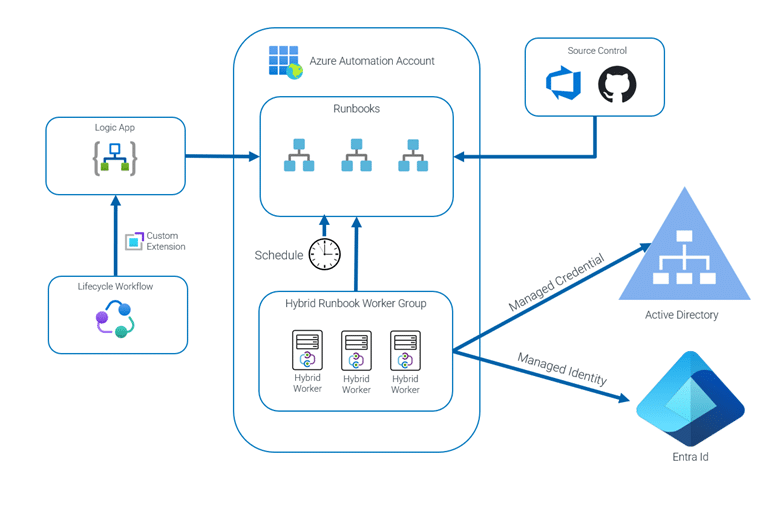
This approach has some other benefits:
- The scripts associated with the runbooks can be automatically managed with source control, such as Azure DevOps or GitHub.
- The hybrid runbook workers can access Azure-based resources using a managed identity. This makes it easier to do things like store required data files in Azure rather than using on-premises file servers.
- Hybrid Runbooks can be triggered outside of lifecycle workflows e.g., on a schedule or via some other automated trigger. This can facilitate scenarios that are not always easy to implement in the strict joiner, mover, leaver structure of lifecycle workflows.
There are some things that you need to watch out for when using Hybrid Runbook Workers:
- PowerShell Module Management – Unlike cloud-hosted Azure Automation runs, there is no management of required PowerShell modules on a Hybrid Runbook Worker node. All of the PowerShell modules your script(s) require need to be installed on each server hosting a Hybrid Runbook Worker. You could use traditional endpoint management tools to deploy PowerShell modules or code your runbook scripts to check for and install required modules when they run. If you choose to manage modules within your script, be careful with large and complex modules like Az or MGGraph. These modules install many sub-modules that can take a long time to install. Install only the sub-modules that your script requires to manage this problem.
- Credential Management – Using custom credentials vs the agent machine’s identity requires special permissions to be granted to specific folders. It is possible for Windows patches to overwrite those permissions.
- State Management – When there are multiple Hybrid Runbook Workers agents assigned to a group, you have no control over which agent executes a runbook. You cannot store data associated with a job on the server that runs the job since that data may not be accessible to subsequent runs of the job.
- Automation Limits – There are limits to number of simultaneous jobs and the rate at which jobs can be submitted to an automation account. Bulk operations, such as a mass on-boarding of users during a merger, may exceed these limits causing the submission of the jobs to the automation account to fail. This can be handled with appropriate retry handling in the logic app at the cost of complexity of implementation.

Summary
Many enterprises still manage their user identities primarily on-premises. To implement complex lifecycle workflows for those identities requires the ability to execute tasks on-premises, one way to solving this problem is to use Azure Automation Hybrid Runbook Workers that are triggered by a Logic App configured as a custom extension task for Lifecycle workflows.
If you need help with Entra identity Governance, please contact the experts at Ravenswood Technology Group.