




To control access to sensitive applications, data or resources, organizations may create policies that require controls—such as approvals to be met—before a user can be granted access.
Where there are regulatory requirements around such access, it is as important to show that the process and controls were followed as it is to grant access. The need to keep such information may span years depending on the industry and regulations involved.

The enforcement of such policies and the associated record keeping typically falls into the scope of Identity Governance and Administration solutions, such as Microsoft Entra ID Governance. In this blog we will examine how Entra ID Governance logs access requests and approvals, and how you can configure it to meet long term audit requirements.
Out of the Box: Using Microsoft Entra ID Governance
Partner with Microsoft experts you can trust
If it’s time to take that first step toward leveling up your organization’s security, get in touch with Ravenswood to start the conversation.

In the above screenshot we have added a Category filter for “EntitlementManagement” to filter out the many other categories of events that are also logged to the same audit log.
Because the audit logs are shared across components, there are other locations in the UI that access the same data (e.g. Identity → Monitoring & health → Audit Logs) There are minor differences in the columns presented and the search capabilities depending on where the audit logs are accessed from, but the underlying data is the same.
There are two principal disadvantages to the default audit logging for entitlement management:
- There are very limited capabilities to search in the audit logs in the portal and admin center user interfaces. This makes finding specific events very difficult.
- The data retention for audit logs in Entra ID is 30 days, which is unlikely to satisfy most regulatory requirements.
The default capabilities are thus best suited for simple troubleshooting or testing of the Entra ID Governance capabilities.
Who Approved This?
In the above scenario, we can retrieve approvals by filtering our audit log for Category “EntitlementManagement” and Activity “Approve access package assignment request”.

This view will show us who approved each request, but from the search view we have no idea who the requestor was, or what they were requesting.
We can get more details from the “Target(s)” tab of the Audit Log Details view:

In this case, we can see that Toto Tutu was approved for the access package “Finance Package 1”.
Manually performing this kind of investigation can work for ad-hoc troubleshooting, but this is not a real audit or reporting solution.
Long Term Retention and Advanced Querying
The solution to the two limitations associated with the default audit logs is thankfully the same.
By streaming the audit logs to a Log Analytics workspace, we can:
- set a longer retention time (up to two years)
- use the Kusto Query Language (KQL) to perform advanced queries against data
The use of a log analytic workspace also enables other benefits such as Azure Monitor workbooks to provide advanced reporting capabilities.
Streaming to Log Analytics
It is possible that a given Entra ID tenant may already have a log analytics workspace that is configured to receive Entra ID audit log data, as this is a common configuration for auditing other Entra ID events.
This can be determined by clicking the “Export Data Settings” on the Identity Audit log view (Identity → Monitoring & health → Audit logs → Export Data Settings) to get to the Diagnostic settings for the Entra ID tenant:
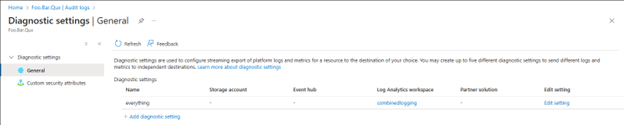
Note that this is one of the aforementioned differences between the different Audit log views, as the Export Data Settings icon does not exist on the view accessible from Identity Management.
If a diagnostic setting exists, click “Edit Setting” to see if the “AuditLogs” category is selected and is being shipped to a Log Analytics workspace, as shown in the screenshot below.
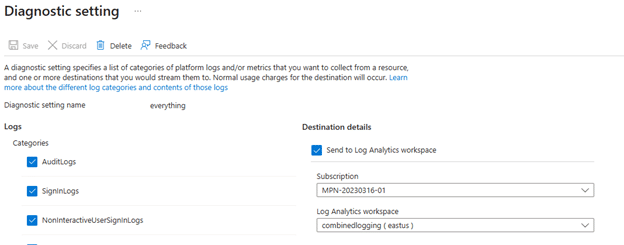
Note that the diagnostic settings can be used to ship audit log data to other targets besides Log Analytics but these other targets are used for more complicated scenarios that are out of scope of this post.
If no diagnostic setting that targets Log Analytics with the AuditLogs category exists, then one will need to be created.
Data Retention Period
If the AuditLogs category is being shipped to a Log Analytics workspace, then it remains to confirm that the data retention configuration for the data meets the requirements of whatever regulatory or compliance framework that is driving your long-term audit needs.
Data retention for a Log Analytics workspace is configured both on a workspace basis and on a per table basis. If you need to adjust the retention on an existing workspace just for the audit log data, it is better to make that change to the audit log table retention rather than the whole workspace.
The per workspace data retention is configured by selecting “Settings → Usage and estimated costs → Data Retention” on the Log Analytics page. For example, the following workspace is configured for the default 30 days:
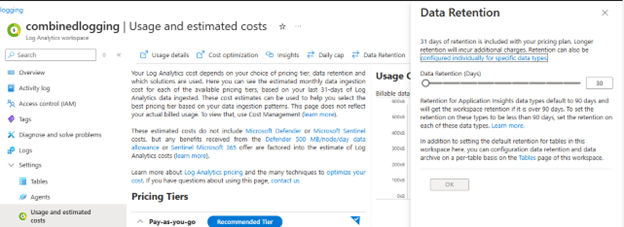
Data will be retained at the workspace retention setting by default, but that can be overridden on the table settings.
Note that the audit log data is streamed to a table called “AuditLogs” in the workspace, and the retention that is set on this table can be accessed via the “Settings → Tables” menu, as shown in the screenshot below.
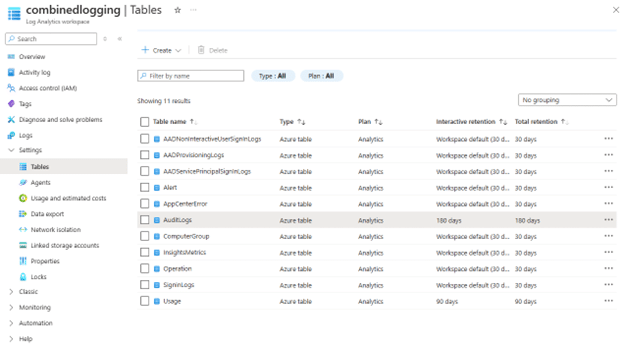
In this case the retention period has been set to 180 days, overriding the workspace configuration. To make changes to an individual table’s retention, access the three-dot menu on the table and select the “Manage Table” option.

Log Analytics has two levels of data retention: “Interactive” and “Long-term” (aka Archive).
The interactive retention period is the time in which the data can be easily queried in Log Analytics and can be used to trigger alerts and drive visualizations. It is the more costly choice and has a maximum retention period of two years.
Once the interactive period has expired, the data is either purged, or it can be placed into long-term retention. Lon-term retention data can only be accessed if it is first retrieved using a search job and temporarily populated into a search result table. It is considerably cheaper than interactive retention and has a maximum period of 12 years.
It is much easier to deal with data in interactive retention, so interactive retention should be used for the period that you would reasonably need to frequently query the data (assuming it is under two years).
Long-term retention should be reserved for data that must be retained (e.g., for legal purposes) but is not reasonably expected to be accessed other than on an exceptional basis.
Who Approved This?
Once the audit log data is Log Analytics, we can unleash the power of KQL to answer our question of “Who approved this?”, by generating a query that surfaces the target user, the target access package and the approver:
AuditLogs
| where Category == "EntitlementManagement"
| where ActivityDisplayName == "Approve access package assignment request"
| extend TargetUser = extract("\"([^\"]*)\",\"type\":\"User\"",1,tostring(TargetResources))
| extend TargetPackage = extract("\"([^\"]*)\",\"type\":\"AccessPackage\"",1,tostring(TargetResources))
| project TimeGenerated,Approver=Identity,TargetUser,TargetPackage
The query reveals that the user Waldo has been approving the access package requests for his direct report Toto.
Now that the data is in Log Analytics, it would be trivial to construct more complicated queries that might target specific packages, users, or time frames to satisfy more sophisticated audit requirements.
Summary
A good Identity Governance and Administration solution includes robust auditing and reporting capabilities that provide visibility into activities over periods of time, potentially encompassing years.
To accomplish this in Entra Identity Governance we need to export the Entra ID Audit Logs to Log Analytics and match the retention period to our compliance or regulatory requirements for audit. Once the data is in Log Analytics, we can leverage the Kusto Query Language to write queries to extract desired activities.
If you need help implementing Entra Identity Governance, please contact the experts at Ravenswood Technology Group.