




Microsoft Intune is a leading solution for modern device management, offering administrators powerful tools for deploying policies, maintaining compliance, and securing endpoints across a diverse organizational landscape. Among its most versatile features is the ability to import and deploy custom ADMX templates, enabling granular control over Windows device settings far beyond the default configuration options. Managing updates to ADMX templates in Intune requires you to understand how Intune processes the templates and best practices for versioning the associated files.

What is an ADMX Template?
Partner with Microsoft experts you can trust
If it’s time to take that first step toward leveling up your organization’s security, get in touch with Ravenswood to start the conversation.
ADMX files, known formally as Administrative Template files, are XML-based documents that define the structure and available options for configuring Windows Group Policy settings. These templates serve as blueprints for how policies are presented to administrators within management consoles, specifying both the available settings and their permitted values. Traditionally, ADMX files are used in on-premises environments via Group Policy, but their integration with Intune extends their utility to the cloud, allowing policy deployment to devices regardless of their domain membership.
Custom ADMX templates empower administrators to manage both standard and proprietary configurations, tailoring the user experience and device behavior to precise organizational requirements. This flexibility makes ADMX templates an essential cornerstone for managing Windows environments at scale.
The ADMX templates come with two files, an .admx and .adml. The .admx file defines the settings available. While the .adml file provides the localized language strings.
Note: Intune only supports en-us language files.
For the limited scope of this article, there are four values that should be edited for each ADMX template prior to uploading to Intune These values are: File names, target namespace, using namespace, and strings, which I will describe in a bit more detail below.
- File Names: It’s important to include the version at the suffix of the two files. Intune requires them to be unique, otherwise it fails to import if the current ADMX template shares the file name.
- Target Namespace: Contained under the <policyNamespaces> key within the .admx and references itself. We must update the namespace attribute to have a version suffix, as this also becomes the value for any child template under the using namespace, if applicable.
- Using Namespace: Contained under the <policyNamespaces> key within the .admx and references a parent namespace of which this template depends on, if applicable.
- Strings: To separate imported ADMX settings from an older version, we must update the string value in the .adml file to include the version suffix. Intune will display the newly imported template with this string value in its own unique folder.
Challenges of Updating ADMX Templates
While the ability to utilize custom ADMX templates in Intune brings significant power and flexibility, it also introduces notable complexities—particularly when it comes to updating these templates after they have been deployed within configuration profiles.
Once an ADMX template has been uploaded to Intune, it cannot be modified, only deleted. However, if a configuration profile has been created using the template, it can no longer be deleted without deleting the configuration profile first.
If you attempt to upload a different version of an ADMX template without editing the four values mentioned above (File names, Target namespace, using namespace and strings), it will fail to upload as either the template name (filename), target namespace or string is already in use. You will be told to delete the existing version. That isn’t possible when the existing version is deployed, and you need to test the new ADMX. If you have a second tenant to use for testing, that solves this problem, but many organizations do not have an isolated test tenant available to use.
Solving the Update Problem
We can solve the versioning problem by making a small update to the admx and adml files. First, rename the files from PowerToys.admx to PowerToys_v1.17.admx and PowerToys.adml to PowerToys_v1.17.adml. Next, edit target namespace shown in Figure 1 and the string value shown in Figure 2 to include the version of the new ADMX template package.


Once the edited ADMX templates have been uploaded to Intune successfully, you can create a new configuration profile using Administrative Templates. The ADMX templates you have uploaded will have edited names. Figure 3 shows how Intune displays the default PowerToys ADMX template and the edited ADMX template.
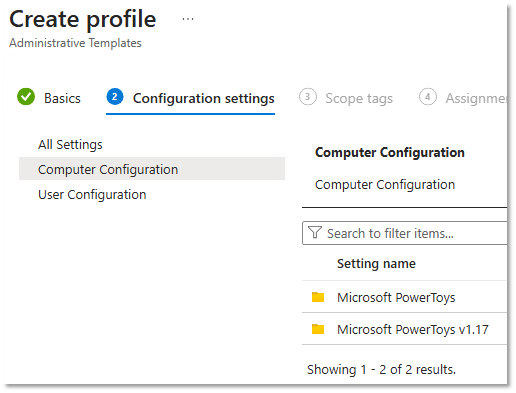
Microsoft PowerToys is a simple example as it has a single .admx file. You may come across other ADMX templates that include multiple template files. For example, Google has three: Google, Chrome, and GoogleUpdates, with Google being the parent of both.
Dependent .admx files have an additional namespace reference that must be edited to match the parent’s edited namespace, like the example in Figure 4. If you edit the parent but do not tell the dependent that the parent has been edited, how would it know where to look?

Dependent .adml files do not need to be edited. Since the parent has already been edited, the strings shown in Intune will display accurately. All dependent templates will be contained within the parent, so there is no need to edit them.
Testing and Deployment
If an old ADMX template is currently deployed, editing the new template files will allow you to upload them to your Intune tenant. A new configuration profile can be created targeting only the new template settings for testing. This allows you to maintain your existing deployment but also allows for testing new templates and their settings simultaneously.
Once testing has been completed, edit the existing configuration profile and add the new template file and settings to remove the old ones. This will allow for a single Intune sync to process the same profile for removal and additions and will reduce the chance of a gap in your settings applications. After the old configuration profile has been updated to use only the latest ADMX template and the application to your users/devices has been confirmed successfully, the old ADMX templates can be safely deleted.
Summary
While Intune and custom ADMX templates offer robust device management capabilities, updating these templates once they are in use requires careful planning, rigorous testing, and clear coordination. By understanding the nature of ADMX files and the intricacies of configuration profile dependencies, IT administrators can navigate the complexities of template updates and maintain a stable, secure, and predictable device environment. The team at Ravenswood Technology Group is available to assist with any of your Intune needs. Contact us to see how we can help.