




Microsoft Intune has continued to mature since its initial release in 2011, gaining new features and capabilities every year. However, in the world of modern cloud management, Intune is still missing one critical piece: dynamic group membership based on device inventory. Other device management providers like Microsoft Endpoint Configuration Manager (MECM), Jamf, and NinjaRMM, offer this capability. With an increasing number of organizations migrating from MECM to Intune, queries based on device inventory or hardware are important for device administrators.
All hope is not lost though; alternatively, one can check devices with a specific managed app in Intune or use Microsoft Defender to monitor inventory. The Properties Catalog device configuration profile type offers a slew of hardware properties that refresh every 24 hours, including: TPM, Windows QFE, BIOS, CPU, battery, disk, memory, and network details.
Microsoft has plans to support using these hardware properties within dynamic device rules for groups. Until then, administrators need to manage as-is or find alternatives. A Microsoft Graph API endpoint exists to return this list of properties per device, called ‘deviceInventories’. However, this does not work outside of the Intune portal (403 Forbidden error). While this may be the future solution to hardware properties, there’s no mention of application-based group membership. And since we cannot access the new properties data, we’ll have to rely on the classic hardware information available in Intune.
To close this gap, you will have to be creative. Throughout this blog, we’ll go over several options to build our own method to dynamically group devices based on hardware or application inventory.

Creative Solutions
Partner with Microsoft experts you can trust
If it’s time to take that first step toward leveling up your organization’s security, get in touch with Ravenswood to start the conversation.
Regardless of the chosen solution, membership update latency is a factor which can be impacted by budget limits, Graph API throttle limits, and device or application counts. Azure Logic Apps or Azure Automation can be used for all described solutions which inherit usage-based costs. Logic Apps through a consumption plan offers 4,000 free actions each month. Azure Automation includes 500 minutes of job run time for free each month. The introductory free units are a great way to test one or more solutions and see if it’s the right fit for you.
While it’s possible to simply instruct our automation (e.g., a Logic App workflow) to add/remove devices from a static group based on a hardware property, it’s best to make use of one of the 15 extension attributes available to devices. One or many dynamic groups can then be created based on an extension attribute and its value(s). For those familiar with Jamf, this approach is akin to extension attributes and creating smart groups with a criteria based on the attribute’s value(s). Furthermore, while a cap of 15 attributes can be quite limiting, they can be combined with multiple properties. For example, pairing virtualization based security (VBS) and credential guard values together like “VBS:ON;CG:OFF” and then specifying the dynamic rule for device group with VBS enabled be (device.extensionAttribute3 -startsWith “VBS:ON”).
Let’s dive into how to populate these extension attributes and create dynamic groups with them.
Microsoft Intune Hardware-Based Membership
One limitation to be aware of is we are unable to retrieve hardware information in bulk. Let’s look at an example using the following endpoint:
https://graph.microsoft.com/beta/deviceManagement/managedDevices?$select=hardwareInformation
To collect the information Intune has stored, we’ll need to loop through each managed device and select the ‘hardwareInformation’ field. Without specifying the field in $select, it still outputs but many subfields output as null. Remember to include ‘azureADDeviceId’ in one of the ‘managedDevices’ endpoint requests as you’ll need to obtain the device’s object ID in Entra.
https://graph.microsoft.com/beta/deviceManagement/managedDevices/{managedDeviceId}?select=hardwareInformation,azureADDeviceId
Dynamic device rules already support model and manufacturer so there’s no benefit there. The real benefit is with the other data; Graph API has details on TPM, virtualization-based security (VBS), credential guard, encryption, and OS system language to name a few.
To set or update an extension attribute field, which exists on the Entra side, we’ll need to find the Entra device object. There are three device IDs: Intune device ID, Azure AD device ID, and object ID. The latter is the Entra device object ID which we’ll use to execute the Graph API requests. The /deviceManagement/managedDevices endpoint will have the Intune device ID and Azure AD device ID but not the object ID. The following request will get you the object ID:
https://graph.microsoft.com/beta/devices?$filter=deviceId eq ‘{azureADDeviceId}’&$select=id
Once our automation process has pulled the hardware information and found the Entra device object ID, we’ll need to update the Entra device object with the extension attribute value(s). A HTTP PATCH request can be made to the /devices endpoint (Entra devices) with a body like the following:
{
  "extensionAttributes": {
    "extensionAttribute3": "@{concat('Encryption:', string(body('Get_Device_Hardware_Info')?['hardwareInformation']?['isEncrypted']))}"
  }
}
Microsoft Intune Application-Based Membership
Now let’s look at how we can pull managed apps per device and set an extension attribute accordingly. There will be many similarities to hardware-based membership, and such will be omitted.
Depending on the purpose for app-based membership, the GET request can be adjusted accordingly. In our sample workflow, we’re using the following Graph API request:
https://graph.microsoft.com/beta/deviceManagement/managedDevices/{managedDeviceID}/detectedApps?$filter=displayName eq ‘Google Chrome’
The output contains not only the application name but also the app version, which can be helpful in many cases. The version number is the full version (e.g., 141.0.7390.55) but can be parsed to pull just the major version (e.g., 141). Depending on the purpose, if the application is not found, the automation process can either skip setting an extension attribute or apply an explicit string like “NotInstalled”.
Implementation
Let’s review a sample Logic Apps workflow that applies extension attributes based on a device’s hardware information as well as if Google Chrome is installed or not.
The displayed workflow runs every 24 hours, retrieves all Intune-managed devices, and collects their hardware information. Subsequently, we query Entra using the AADDeviceId to get the object ID required to set the extension attribute.
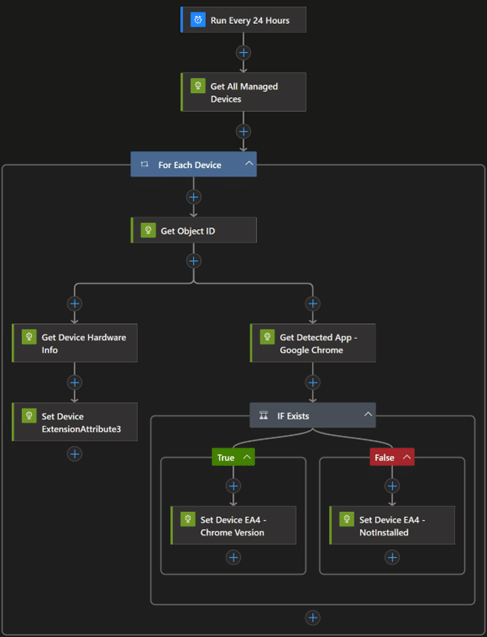
Once the automation is prepared, we’ll pair this with a new dynamic device group to fill in device members based on desired criteria. In our case, we’ll use the following dynamic rule: (device.extensionAttribute3 -eq “Encryption:True”). Another group would be created to group devices by Google Chrome existence or specific version(s).
The result is as you expect, our encrypted devices are part of the group now:

Tip
If you’re not filtering by OS when pulling devices and your environment has multiple managed platforms, you may want to consider adding to the dynamic rule to filter by the OS at that time. For example, if we have Windows and macOS devices managed by Intune but want a Windows encrypted device group, we’ll add deviceOSType equals ‘Windows’. Or for macOS devices, it’ll be ‘MacMDM’.
Endless Possibilities
While we’ve reviewed a specific use-case of extension attributes, what we’ve discussed can be adapted to cover a variety of dynamic group memberships. And the purposes for such dynamic groups are just as endless. From email notifications to deployment of configuration profiles based on membership, dynamic group memberships give device administrators greater control. The best part? It doesn’t just stop at Intune and Entra, as extension attributes are available as device filter properties in conditional access policies.
Once the Graph API endpoint to the new device properties catalog is working, the properties catalog exclusive hardware details could be used for dynamic group membership.
Lastly, while Intune’s detected applications approach is sufficient in most cases, Microsoft Defender could be used as an alternative source. By using Defender, you’d also have access to the vulnerabilities and generate device groups that have such exploited applications installed.
I hope this walkthrough of creative device management methods was not only helpful but also inspiring. Extension attributes are powerful when used right but often are ignored.
If you or your organization are looking to make use of extension attributes for devices, or users, and need assistance, contact the team at Ravenswood Technology Group for our recommendations and implementation support.