




Active Directory (AD) replication typically runs smoothly on its own schedule, but sometimes you need changes to propagate immediately. Whether you’re troubleshooting an urgent issue, deploying critical Group Policy updates, or testing your AD infrastructure, knowing how to manually trigger replication can save valuable time. This guide provides practical steps for forcing replication between domain controllers using both GUI and command-line methods.

What is Forced Replication Between Domain Controllers?
Forced replication between domain controllers is the manual process of triggering AD to synchronize data immediately between selected domain controllers, bypassing the normal replication schedule. Unlike standard automatic replication that occurs on a schedule, forced replication gives administrators immediate control over when synchronization happens.
This capability proves essential when you need urgent account changes to propagate or when troubleshooting replication issues between domain controllers. Administrators typically accomplish this through tools like Active Directory Sites and Services, PowerShell, or the powerful repadmin command-line utility.
When to Force Replication
Understanding when to manually trigger replication helps maintain AD health without creating unnecessary network traffic.
Common scenarios requiring forced replication:
- During disaster recovery operations
- While troubleshooting lingering objects or replication failures
- Testing replication health after network changes
However, forcing replication unnecessarily can spike WAN traffic and overwhelm domain controllers, especially in multi-site environments. Always consider the replication status and network impact before forcing synchronization across multiple sites.
How to Force Replication
Method 1: Using Command Line (Repadmin)
The quickest way to force replication is to use the repadmin command. Open an elevated command prompt on any domain controller and enter the following commands to complete the listed functions:
To force replication across all domain controllers and sites:
repadmin /syncall /A /e
This pulls all changes from other domain controllers to the current DC.
To push changes from the current DC to all others:
repadmin /syncall /A /e /P
To sync with a specific domain controller:
repadmin /syncall DC2 /A
This example pulls changes from DC2 to the current domain controller.
Common flags explained:
- /A – Synchronizes all partitions
- /e – Includes domain controllers across all sites
- /P – Pushes changes outward from current DC
Method 2: Using Active Directory Sites and Services
For those preferring a graphical interface:
- Open Active Directory Sites and Services
- Navigate to Sites → [Your Site] → Servers
- Expand the target domain controller
- Click on NTDS Settings
- Right-click the connection object and select “Replicate Now”
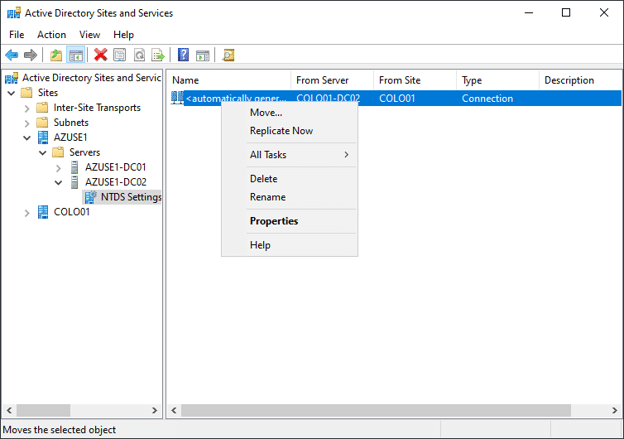
This method provides visual confirmation but requires repeating the process for each replication partner.
Method 3: Using PowerShell
PowerShell offers modern cmdlets for forcing replication:
# Force replication for a specific object
Sync-ADObject -Object "CN=John Smith,OU=Users,DC=contoso,DC=com"
# Trigger replication between specific DCs
Get-ADReplicationConnection -Filter * | Sync-ADObject
Troubleshooting Replication Issues
Partner with Microsoft experts you can trust
If it’s time to take that first step toward leveling up your organization’s security, get in touch with Ravenswood to start the conversation.
When forced replication fails, systematic troubleshooting helps identify root causes quickly. Open an elevated command prompt and enter the following commands to complete the listed troubleshooting functions:
Check replication status:
repadmin /showrepl
This displays the replication status for all partitions and identifies any failures.
Common replication issue indicators:
- Event ID 1311: Configuration information mismatch
- Event ID 2087: DNS lookup failure
- “Target principal name is incorrect” errors
Quick troubleshooting checklist:
- Verify network connectivity between domain controllers
- Confirm DNS resolution is working correctly
- Check Windows Time Service synchronization
- Review AD Sites and Services configuration
- Validate service account permissions
Best Practices for AD Replication
Maintaining healthy AD replication requires proactive monitoring and proper change management.
Monitor replication health regularly: Run repadmin /replsummary weekly to catch issues early. This command provides a quick overview of replication delays and failures across your entire forest.
Schedule non-urgent changes appropriately: Plan major AD changes during maintenance windows when possible, allowing natural replication to handle the load without manual intervention.
Consider site topology: In multi-site environments, understand your replication topology before forcing synchronization. Triggering replication across slow WAN links during business hours can impact other critical services.
Secure Your Active Directory Infrastructure
Forcing replication between domain controllers solves immediate synchronization needs, but it’s just one aspect of maintaining a healthy AD environment. Regular replication issues often indicate deeper infrastructure problems that require comprehensive assessment.
Ready to optimize your AD infrastructure? Ravenswood Technology Group’s Active Directory Domain Services team specializes in AD health checks, modern tiering implementation, and replication troubleshooting. Our experts can help identify and resolve persistent replication issues while implementing best practices that prevent future problems.
Contact us today to schedule your comprehensive AD health assessment and ensure your domain controllers maintain optimal replication health.