




In today’s digitally transforming landscape, organizations are increasingly adopting cloud services to enhance their reach and security posture. However, a significant amount of critical data and legacy systems still reside on-premises. The ability to connect Azure Logic App workflows with these on-premises resources enables a cohesive and powerful automation solution. We will explore how logic apps can connect to on-premises and delve into the benefits and opportunities for leveraging this connectivity.

What Are Logic Apps?
Azure Logic Apps is a cloud-based service for creating and running automated workflows that integrate with an expansive list of apps, data, and first and third-party services. Albeit like Power Automate, Azure Logic Apps provide an enterprise experience for automation. A visual designer is available to add actions to the workflow and configure them to do certain tasks and as data flows from one action to another. With the right inputs, you’ve potentially automated a task that no longer must be done manually.
Efficiency and accuracy are critical in any environment. Automating repetitive tasks not only frees up administrative resources but also reduces the likelihood of human error and accelerates the process execution.
The Unlocked Potential of Logic Apps
Connecting your logic apps workflows to your on-premises environment unlocks a wealth of benefits. Securely interact with corporate data stored on-premises and interact with the data from the cloud. With such data, you can integrate Entra ID and other API-capable services like Microsoft Defender, Intune, and many more. For example, say you have a hypervisor on-premises and would like to monitor virtual machines (VMs) and their configurations. When a certain requirement is met, you would like to deliver an email to the owner of the VM and their manager. With the data retrieved from the on-premises hypervisor, logic apps can identify both the owner and their manager. This information is then passed to SendGrid to deliver a professional, branded email notification.
The foundation of this scenario, and many other on-premises infrastructure management tasks involves PowerShell. Fortunately, logic apps can run PowerShell code. Let’s find out how to run a remote PowerShell command from logic apps on an on-premises server.
Building the Bridge
Connecting logic apps to your on-premises servers requires network connectivity to your organization’s network. Fortunately, you can connect your logic apps to an Azure Virtual Network (VNet) that has connectivity to on-premises networks.
Establish On-Premises Network Connectivity
A secure and reliable network connection must be established between your Azure VNet and your on-premises network. The two primary methods to achieve this are:
- Azure Site-to-Site VPN: This creates an encrypted tunnel over the public internet between your on-premises VPN device and an Azure VPN Gateway in your VNet. It’s a common and cost-effective solution for many hybrid needs.
- Azure ExpressRoute: This solution provides a private, dedicated connection between your on-premises environment and Azure. ExpressRoute offers low latency and high bandwidth and reliability, making it suitable even for demanding workloads.
Once the connection is in place and with some additional configuration, resources like but not limited to logic apps can communicate with your on-premises servers.
Enable Logic App VNet Integration
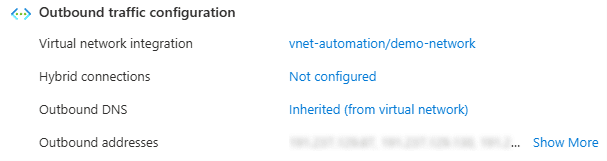
For logic apps to leverage this private tunneled connection through the VNet, a logic app standard plan is the minimum requirement. The consumption plan does not support VNet integration whereas the standard plan supports your workflows to deploy into your Azure VNet.
Secure Credentials Using Azure Key Vault
Partner with Microsoft experts you can trust
If it’s time to take that first step toward leveling up your organization’s security, get in touch with Ravenswood to start the conversation.
The logic app workflow will execute a PowerShell script that establishes a PSSession connection to the target on-premises server using a service account credential. Hardcoding credentials in the PowerShell script is a significant security risk. Azure Key Vault provides a secure and centralized solution for managing these credentials.
- Create a service account in Active Directory that can be used for remote authentication. Always follow the principle of least privilege and restrict the service account to applicable servers for login.
- Store the credentials in key vault as a secret. You as the Azure administrator will have to temporarily give yourself the correct Azure RBAC roles for the key vault resource.
- Assign the Azure RBAC role, Key Vault Reader, on the key vault resource to the logic app’s system-assigned managed identity (enable this setting on your logic app if you have not already). Visit the newly created secret and assign the Azure RBAC role, Key Vault Secrets User, so the managed identity can read the secret’s contents.
- Don’t forget to remove your role assignments – you will no longer need access. Consider building alerts to be notified when someone gives access to the key vault as even an owner of a subscription requires the role to be able to create/modify/read the secrets.

Creating the Logic App Workflow for On-Premises Integration
While designing the workflow, you’ll want to retrieve the credential of the service account accessing on-premises servers from the key vault. When searching for the appropriate action, select the “Get secret” action from the Azure Key Vault family and not key vault. The Azure Key Vault action allows you to use the logic app’s system-assigned managed identity seamlessly.
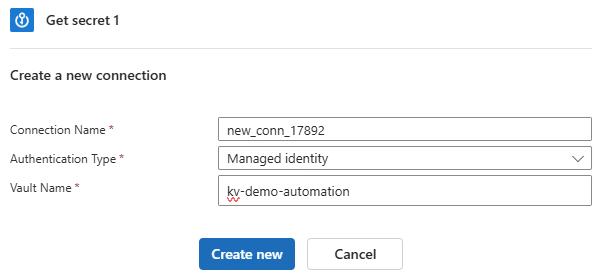
You’ll be asked to create an API connection to Azure Key Vault. Define a connection name, select “Managed identity” for authentication type and complete the “Vault Name” field.
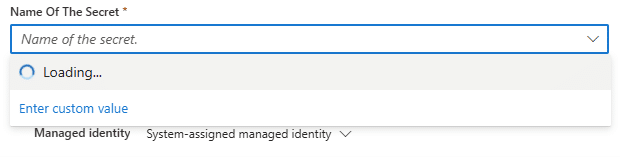
The next step is to select the secret you want to retrieve. If the logic app’s managed identity does not have proper permissions or if you enter the incorrect vault name, the dropdown will not load the available options. Instead, a permissions error will appear or a “BadGateway” error if you entered the wrong vault name.
Prepare the PowerShell Connection
$hostname = $env:COMPUTERNAME

# Manually enter IP if below command fails
$hostIP = (Get-NetAdapter | GetNetIPAddress).IPv4Address | Out-String
$srvCert = New-SelfSignedCertificate -DnsName $hostname, $hostIP -CertStoreLocation Cert:\LocalMachine\My
Write-Output $srvCert # Copy the certificate’s thumbprint to the side, used later

# Get current listener configuration
winrm e winrm/config/listener
# Add HTTPS listener
New-Item -Path WSMan:\localhost\Listener\ -Transport HTTPS -Address * -CertificateThumbprint $srvCert.Thumbprint
# Replace thumbprint variable with value if previous step was skipped# Check updated configuration
winrm e winrm/config/listener
Listener
Address = *
Transport = HTTPS
Port = 5986
Hostname
Enabled = true
URLPrefix = wsman
CertificateThumbprint = BH2456H198H5B671BBTBGY412T61
ListeningOn = 10.1.0.x# Export public key (used later)
Export-Certificate -Cert $srvCert -FilePath ~/Desktop/LogicAppPSRemoting.cer# Create inbound firewall rule to allow WinRM HTTPS (ideally using a GPO)
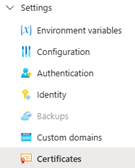
New-NetFirewallRule -DisplayName "WinRM – PowerShell Remoting HTTPS-In" -Name "WinRM – PowerShell Remoting HTTPS-In" -Profile Any -LocalPort 5986 -Protocol TCPNow that the certificate is prepared on the server side, we’ll need to upload the exported public key to the Logic App instance. Visit Certificates under the logic app Settings category and add your public key certificate.

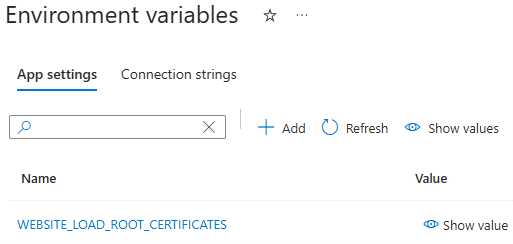
At this point, the bridge has been built, and we are ready to connect to on-premises servers and perform actions or gather data.
Connecting to On-Premises
The “Get secret” action will retrieve the service account password from Key Vault. Using the PowerShell script action, we’ll first prepare the credential object for our PSSession object.
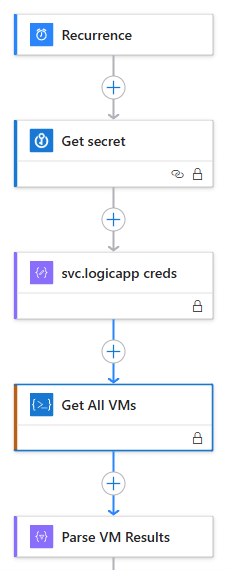
$username = "demo\svc.logicapp"
$secret = (Get-ActionOutput -ActionName "svc.logicapp_creds").outputs
$password = ConvertTo-SecureString $secret.ToString() -AsPlainText -Force
$credential = New-Object System.Management.Automation.PSCredential($username, $password)
Next, we will build the PSSession with the correct parameters. Attempt to minimize skipping checks if possible. “UseSSL” is a requirement for external remote sessions.
$sessionParams = @{
  ComputerName = "host01.contoso.com"
  Credential = $credential
  UseSSL = $true
  SessionOption = New-PSSessionOption -SkipCACheck -SkipCNCheck -SkipRevocationCheck
  ErrorAction = "Stop"
}
$hostSession = New-PSSession @sessionParams
$vmResults = Invoke-Command -Session $hostSession -ScriptBlock { # do something; return $data; }Wrapping up
The ability to bridge cloud and on-premises environments with logic apps opens numerous automation opportunities. Below are a few opportunities and use cases:
- Event-driven on-premises actions
- Monitoring on-premises systems and delivering notifications
- Custom onboarding and offboarding workflows
- Hybrid reporting and analytics
Azure Logic Apps provides a versatile and powerful platform for automating processes that span the cloud and your on-premises environment. This hybrid approach is not just a temporary bridge but a strategic enabler for modernizing workflows and driving significant operational efficiencies. Power up your logic apps with on-premises connectivity.
Looking to harness Azure Logic Apps for secure, scalable automation? Ravenswood Technology Group helps organizations design and implement best-practice solutions that connect on-premises and cloud environments. Get in touch with us to explore how we can strengthen your integration strategy.