

In Managing ADMX Template Updates in Microsoft Intune, I explained how versioning custom ADMX (Administrative Template XML) and ADML (Administrative Template) files makes it possible to upload, test, and deploy a new template without first removing the version already in use. That process solves an important part of the update problem, but it leaves another question for the cleanup phase: which configuration profiles still use each custom ADMX file?
The Intune admin center shows imported administrative templates and prevents deletion when a template remains in use. However, when a tenant contains several versions, multiple configuration profiles, and templates with parent dependencies, working backward from an uploaded file can be time-consuming.
While keeping previous versions isn’t going to cause harm, it could cause confusion and unintended use of outdated versions. After new versions are put into service, the previous versions should be removed once all associated configuration policies have been retired, especially if you have a large quantity of ADMX files uploaded.
I created a PowerShell discovery script, Get-IntuneCustomAdmxProfileUsage.ps1, to provide a tenant-wide view of all ADMX files that are in use, with their relationships to configuration profiles and potentially nested ADMX hierarchies.

What the Script Reports
The script reads the tenant’s uploaded custom ADMX metadata, custom administrative templates profiles, configured settings, and category hierarchy through Microsoft Graph. It then produces one row for each custom ADMX file, and its potential dependent ADMX used by a configuration profile.
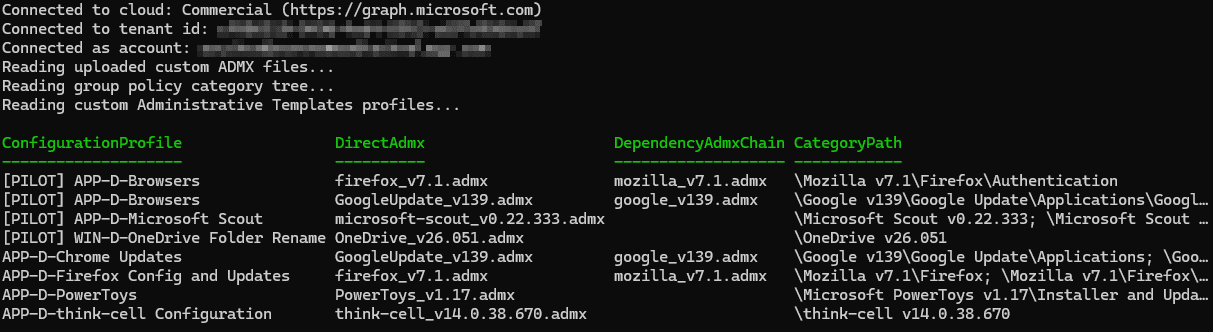
In the PowerShell console output, each result contains:
ConfigurationProfile – The Intune configuration profile containing configured custom ADMX settings.
DirectAdmx – The uploaded ADMX file associated with those settings.
DependencyAdmxChain – Parent ADMX files required by the direct template, listed nearest parent first.
CategoryPath – The administrative templates category associated with the reported usage.
Outputting to CSV will include additional data to each result:
ProfileID – The Intune configuration profile ID containing configured custom ADMX settings.
SettingsConfigured – The configured setting names.
AdmxNamespace – The target namespace of the direct ADMX.
AttributionSource – Whether Microsoft Graph supplied a direct definition-file link or the script used tenant category data.
Dependencies are particularly important during an update, as a parent template may have a newer version released that must be updated. Updating a parent ADMX should be treated the same as updating any other template as referenced in my prior blog, Managing ADMX Template Updates in Microsoft Intune.
For example, a Chrome Update template may depend on a parent Google template, while a Firefox template may depend on Mozilla. A profile can therefore use one ADMX directly while relying on another imported ADMX to supply its parent namespace and category structure.
Script Prerequisites
Run the script from PowerShell with the Microsoft Graph Authentication module installed:
Install-Module Microsoft.Graph.Authentication -Scope CurrentUser
No other PowerShell modules need to be installed as there are no native modules to provide the data needed. All communication with Microsoft Graph uses Invoke-MgGraphRequest only.
The signed-in account must be able to consent to or use the delegated Microsoft Graph permission DeviceManagementConfiguration.Read.All. The script is read-only and does not modify profiles, assignments, settings, or uploaded templates.
Running the Discovery
Partner with Microsoft experts you can trust
If it’s time to take that first step toward leveling up your organization’s security, get in touch with Ravenswood to start the conversation.
For a standard commercial tenant, run:
.\Get-IntuneCustomAdmxProfileUsage.ps1 -VerboseThe default cloud is Microsoft 365 Commercial. US Government environments are also supported through the `-Cloud` parameter by passing Commercial, USGov, or USGovDoD values.
An optional `-TenantId` value can be supplied when the account has access to multiple tenants or the connection needs to target a specific tenant.
The script prompts for Microsoft Graph authentication, displays the connected cloud, tenant, and account, and then reads the required Intune collections. I recommend using `-Verbose`, especially during the first run, because it shows profile counts, category information, and any attribution that needs closer review.
To export all report fields to CSV, use:
.\Get-IntuneCustomAdmxProfileUsage.ps1 -ExportCsv -CsvPath .\Intune-CustomAdmx-ProfileUsage.csv
Supplying `-CsvPath` by itself also enables export. The console output is intentionally concise for interactive review, while the CSV includes additional data for documentation purposes or further analysis.
Interpreting the Output
The following sanitized example came from a tenant containing five custom administrative templates profiles:
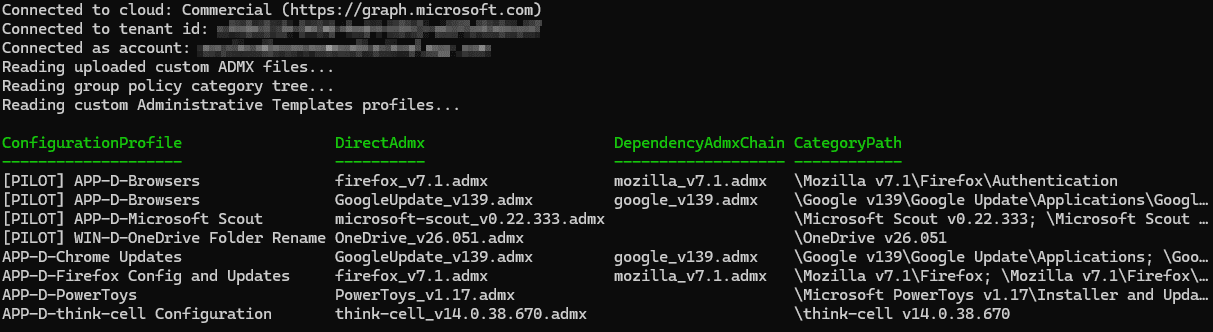
The Chrome row shows that the profile directly uses `GoogleUpdate_v139.admx` and that the template depends on `google_v139.admx`. The Firefox profile shows the same relationship between `firefox_v7.1.admx` and `mozilla_v7.1.admx`. The other templates in this example do not have a reported parent dependency.
In certain circumstances you may have settings from two different ADMX configured under a single profile. The first two rows show this example with multiple ADMX configured.
This information helps establish the order of operations during cleanup. A parent ADMX should not be treated as unused merely because it does not appear in the `DirectAdmx` column. It may still appear in `DependencyAdmxChain` because another template relies on it.
Using the Report During an ADMX Update
After uploading and testing a versioned ADMX package, run the script and export the results. Review the console output or CSV, if created, for the old ADMX filename in both `DirectAdmx` and `DependencyAdmxChain`. Any matching profile should be reviewed and its settings either updated to the new template version or a new profile created to be used with the new templates.
Once the report no longer identifies the old ADMX as either direct usage or a dependency, confirm the relevant profiles and device behavior in Intune. The report is a discovery tool that improves visibility; it is not an automatic approval to delete a template.
Scope and Caveats
The script reports custom administrative templates profiles represented by Intune’s `groupPolicyConfigurations` data. It does not inventory every Intune policy type or every possible use of an ADMX-backed setting.
It uses Microsoft Graph `/beta` endpoints because the required Intune administrative templates data is exposed there. Beta endpoint behavior and returned relationships can change.
The report may display `UNRESOLVED` as it was unable to identify the specific ADMX being used as that information is not directly available from Microsoft Graph. If the report displays `UNRESOLVED`, rerun with `-Verbose` and investigate that profile before taking cleanup action.
Finally, validate unexpected results in the Intune admin center and keep the exported report with the change record. Combining versioned templates, controlled testing, usage discovery, and human verification creates a much clearer path from importing a new ADMX version to safely retiring the old one.
Need Help Managing Intune?
Custom ADMX lifecycle management is only one part of maintaining a secure and predictable endpoint environment. Ravenswood Technology Group can help your organization assess its Intune configuration, plan template updates, and improve device management processes without disrupting users. Contact us to discuss your Intune goals and how our team can help.